⚠️ Disclaimer: This article is for informational and educational purposes only and does not constitute legal, professional, engineering, construction, or code-compliance advice. Permit requirements, timelines, fees, procedures, interpretations, and enforcement practices vary by jurisdiction and may change without notice. Always verify current requirements with your local building department and, when appropriate, consult a licensed contractor, architect, engineer, attorney, or other qualified professional before starting any project.
By María Rossiter · NextPermit.org · Permit Coordination · Life Safety · Tools
If you’ve ever managed more than ten active permits at the same time, you know the feeling: a contractor is calling about an inspection, an AHJ just sent a correction letter, another permit is about to expire, and somewhere in that chaos you’re trying to remember which revision is the latest for Building C.
That’s not a workflow problem. That’s a visibility problem. And the fix isn’t a fancier software subscription — it’s knowing exactly where to look for every permit, every status, every date, at any given moment.
I’ve been a Permit Coordinator for over six years across South Florida, working through more than 58 jurisdictions — from Miami-Dade to Palm Beach. During that time I managed Fire Alarm installations, BDA systems, panel changes, and everything in between. And through trial and error, I built a tracking system that actually works.
“The goal isn’t to track everything perfectly. It’s to never be caught off guard by anything.”
This is that system — turned into a clean, ready-to-use spreadsheet. It was originally built specifically for Fire Alarm and BDA permit tracking, but it’s fully flexible. You can adapt it to any scope of work, any jurisdiction, any team size. Think of it as a starting framework — not a rigid rulebook.
Why a Spreadsheet, Not an App?
I know there are project management tools out there. I’ve used some of them. But here’s what I’ve found: most permit coordinators work across multiple companies, multiple contractors, multiple AHJs — and a rigid software platform rarely fits every single workflow.
A spreadsheet gives you full control. You can add columns, rename fields, filter by PM, sort by expiration date, and share it with anyone without requiring them to create an account. It’s fast, portable, and every PM already knows how to use it.
What this tracker solves
- “When does this permit expire?” — answered in one glance
- “What’s the status on the BDA for Building X?” — filtered in seconds
- “How many active permits does each PM have?” — visible on the dashboard
- “Did we get the FA final inspection approved?” — checkbox column, done
- “Which permits are expiring in the next 30 days?” — auto-counted for you
What’s Inside the Tracker
The file has five tabs, each with a specific purpose:
📋 Start Here
Instructions and column explanations. Open this first — it tells you exactly how to use every field.
📊 Dashboard
Auto-summary of active permits, status breakdown, and a live count of permits expiring within 30 days.
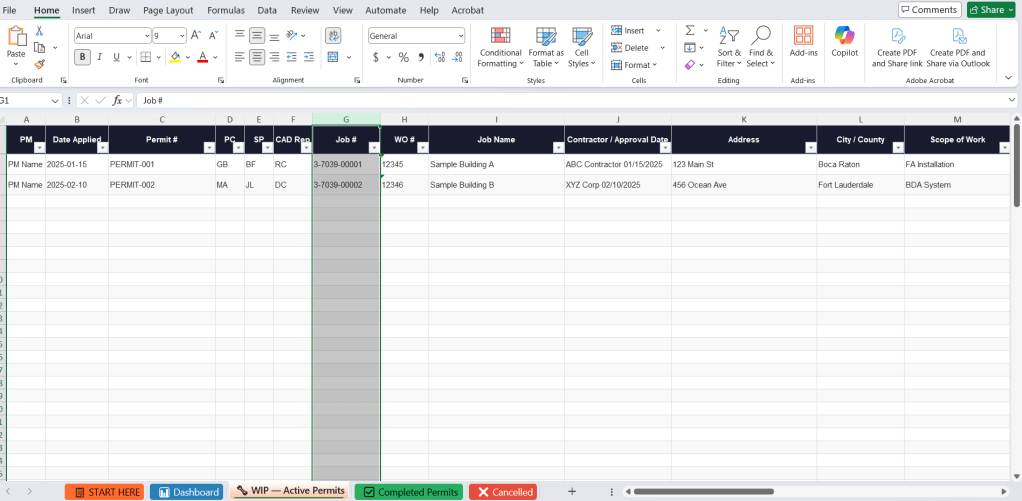
🔧 WIP — Active Permits
Your main working sheet. Every open permit lives here until it closes. Status dropdown with color coding built in.
✅ Completed Permits
Move finished jobs here once COC is received. Keeps your WIP list clean and your history organized.
❌ Cancelled
Log cancelled projects for reference and reporting. Don’t delete — cancelled history matters.
The Fields That Matter Most
The WIP sheet tracks everything from the moment a permit is submitted to the day it closes. Here are the columns that will save you the most headaches:
Status (with dropdown + color coding)
Every row has a dropdown with six statuses: Applied, In Review, Issued, Working on Corrections, Closed, and Cancelled. The cell changes color automatically — green for Issued, red for Corrections, blue for Applied. When you’re looking at 80 rows, that color coding tells you everything in three seconds.
Milestone Checkboxes
Columns for Welcome Call, Materials Ordered, Rough In, Wire, Trim, Program, Pre-Test, Monitoring Contracts, ETL Certificate, Billing, and more. Use Y for complete, N/A for not applicable, and leave blank for pending. Simple, scannable, no guessing.
Permit Issued Date & Expiration Date
These two columns are critical. The dashboard counts how many permits expire in the next 30 days automatically — so you’ll never miss a renewal again.
Inspection Dates
Separate columns for FA Test Inspection, Electrical Rough, Fire Rough, Electrical Final, and FA Final. Each date logged the moment it’s approved. No more digging through emails to find when the last inspection passed.
How to Make It Your Own
This tracker was built for Fire Alarm and BDA projects — but it’s a guide, not a constraint. Here’s how to adapt it:
Customization ideas
- Add a “Jurisdiction Contact” column with AHJ phone and portal login
- Rename SOW column to match your company’s project categories
- Add columns for sprinkler, HVAC, or electrical if you track multiple trades
- Create a new tab for a specific client or city if your volume warrants it
- Add a “Fee Paid” or “Invoice #” column if you track billing milestones
- Color-code the PM column by person to see workload distribution at a glance
The structure is intentionally lean. It gives you the foundation — you build on top of it based on how your team actually works.
A Few Tips from the Field
Sort by Permit Expiration Date once a month. Make it a calendar event. Renewals are the easiest thing to miss and the most annoying to fix after the fact.
Use the Comments column like a mini log. Paste the AHJ tracking number, correction letter dates, and any conversation notes. When someone asks “what happened with that permit?”, your answer is already written.
Move to Completed only when COC is in hand. Not when the final inspection passes. Not when the contractor says it’s done. When you have the Certificate of Completion — then you move it.
Filter by PM name weekly. If one PM has 40 open permits and another has 10, that’s information you need to act on before the 40 starts slipping.
Related guides
📥 Download the Tracker
Fire Alarm & BDA Permit Tracker
Ready-to-use Excel file. Five tabs, color-coded status, milestone checkboxes, expiration alerts, and a live dashboard. Fully editable — make it yours.
If you’re a permit coordinator managing Fire Alarm, BDA, or any life safety scope and you’ve been running on a patchwork of spreadsheets, sticky notes, and email threads — this is the system I wish someone had handed me on day one.
And if you have questions, a feature request, or you want to share how you adapted it for your workflow — reach out. That’s exactly what NextPermit is here for.

